Ghostty Remap Cmd to Control under macOS
Ghostty is ridiculously fast. But there’s one thing that bugged me: my thumbs.
Terminal shortcuts expect Control. Ctrl + a for line start, Ctrl + e for line end, Ctrl + k to kill the rest of the line. These are Emacs-style readline bindings, baked into every shell since the 80s.
Mac keyboards bury Control in the corner. Command sits right under your thumb where it belongs. I kept reaching for Command and getting nothing.
So I fixed it.
Karabiner? Nope.
First thing everyone suggests: Karabiner Elements. Global key remapping, very powerful.
Too powerful for this. A global Cmd→Ctrl swap hijacks Cmd + Tab , Cmd + C in other apps, and breaks app switching. Yes, Karabiner can do per-app rules, but the config is XML-heavy and fragile across updates.
Ghostty has built-in per-app keybinds. Problem solved at the right layer.
The fix
Drop this in your Ghostty config (~/.config/ghostty/config). Each line maps
Cmd
+
letter
to the corresponding ASCII control character:
keybind = cmd+a=text:\x01
keybind = cmd+b=text:\x02
keybind = cmd+c=text:\x03
keybind = cmd+d=text:\x04
keybind = cmd+e=text:\x05
keybind = cmd+f=text:\x06
keybind = cmd+g=text:\x07
keybind = cmd+h=text:\x08
keybind = cmd+i=text:\x09
keybind = cmd+j=text:\x0A
keybind = cmd+k=text:\x0B
keybind = cmd+l=text:\x0C
keybind = cmd+m=text:\x0D
keybind = cmd+n=text:\x0E
keybind = cmd+o=text:\x0F
keybind = cmd+p=text:\x10
keybind = cmd+q=text:\x11
keybind = cmd+r=text:\x12
keybind = cmd+s=text:\x13
keybind = cmd+u=text:\x15
keybind = cmd+w=text:\x17
keybind = cmd+x=text:\x18
keybind = cmd+y=text:\x19
keybind = cmd+z=text:\x1A
What the hex codes mean
The \x01–\x1A values are ASCII control characters. \x01 is Ctrl+A, \x02 is Ctrl+B, and so on — the hex value equals the letter’s position in the alphabet. So when you press
Cmd
+
a
, Ghostty sends the same byte your shell gets from
Ctrl
+
a
.
Keys I left out
- Cmd + t — new tab. You probably want that.
- Cmd + v — paste. Definitely want that.
Watch out for Cmd+C
Cmd
+
c
is mapped to \x03, which is SIGINT — the signal that kills a running process. This is the same as
Ctrl
+
c
, so it does the right thing in terminal. But it means you lose
Cmd
+
c
for copying text. Use
Cmd
+
Shift
+
c
or mouse selection instead if your workflow needs both.
Config originally from this Ghostty discussion.
Why bother?
If you only use macOS, maybe you don’t. Remap Caps Lock to Control in System Settings and call it a day.
But I jump between Mac, Linux, and Windows. Different keyboards, different layouts. My fingers expect Command in terminal on Mac, Control everywhere else. This config means my muscle memory works in Ghostty without fighting the rest of macOS.
Small fix, daily payoff.
Related: If you’re deep into keyboard ergonomics, I also wrote about Emacs, Apple keyboards, and RSI — the broader problem of making shortcuts work across platforms without destroying your wrists.
Install Ruby 3.1.4 on macOS
In case ruby can’t find OpenSSL 3 headers, use this way.
brew install ruby-install
ruby-install ruby 3.1.4 -- --with-openssl-dir=$(brew --prefix openssl)
Emacs, apple keyboard, and RSI
Recently I’ve started investigation on the most effective shortcuts for Emacs. Already for a long time I’ve been using Caps Lock remapped to Esc when pressed alone, and Ctrl-Key when pressed with any other key.
I didn’t use Emacs with native bindings for a long time, because of wrist related issues, which immediately appeared after using pinky for pressing long chords which normally included Ctrl-C combination. This is why I used Spacemacs and later Doom Emacs as the configuration of choice.
And this worked relatively good, I used the same bindings for Vim in terminal, and no RSI since pinky wasn’t overloaded with long presses. But something were not so good, I needed to keep a context in the head and using special modes like eshell or repl weren’t fun because of context switch losses.
So I’ve started reading the book Mastering Emacs, which I definitely recommend, I decided to give a try to alternative solutions for Emacs keybindings.
First of which were using interesting combinations for the keychords like pressing J+K equals to Control and pressing F+D equals to control. The idea was to reduce pressure on pinky by moving control to the “home” row. This worked to some extent. Long combinations with Ctrl, like “C-c C-o C-r” needed to have very uncomfortable key sequences. Apart from this constant typos where annoying, when you switched keys too fast. So I dropped this option and started looking for new ways.
I realised, that Ctrl should not be pressed by pinky, it should be just convenient enough to reach. Then I saw old design of the Space Kadet keyboard, and it had Control right near the Space key.

Whan I swapped Command and Control keys, man, that was real enlightenment, literally everything started being comfortable. Look, Ctrl-x-s is just a single row. Ctrl-c feels natural, because you literally use mighty thumb and index fingers. Movement with Ctrl-a, Ctrl-e, Ctrl-n and Ctrl-p just started having much more sence and convenience. Most of the Emacs combinations with Ctrl-C and Ctrl-X are sane now.
It comes as a bonus using readline compatible utilities in terminal.
I really think swapping Caps Lock and Control is a BAD advice that did enourmous harm for neglecting Emacs than anything else. Either Windows based keyboards having Alt, or Mac based keyboards having Command, should be swapped with Control at least in Emacs and other readline applications. Do this right now using Karabiner Elements free application for MacOS and never experience any RSI.
Using Karabiner Elements you can make this change only for the several applications, like Emacs and iTerm, and not the system-wide.
Update:
In order to remap command to control you don’t event need Karabiner Element, just map command to control using the following snippet
(setq ns-modifier-command 'control)
In iTerm it’s also easy to do, open
Preferences -> Keys -> Remap modifiers
and change the settings. One more trick is how to switch between apps from iTerm using Cmd+Tab when it’s remapped?
Here is how to do this https://gitlab.com/gnachman/iterm2/-/issues/6394
You can add exceptions to keyboard remapping, but it’s not very intuitive. Add a key mapping to Prefs > Keys. First, select the action Do Not Remap Modifiers. Then set the shortcut to Cmd-Tab (by pressing the physical cmd key plus tab).
RSI stands for repetitive strain injury https://www.nhs.uk/conditions/repetitive-strain-injury-rsi/
Update 2025: I now use Ghostty as my terminal. It has built-in per-app keybinds, so you can remap Cmd→Ctrl without Karabiner and without breaking system shortcuts.
Applescript instantly open Zoom link from the iCal calendar
This is really my little timesaver because you know, a lot of meetings happen when you work remotely.
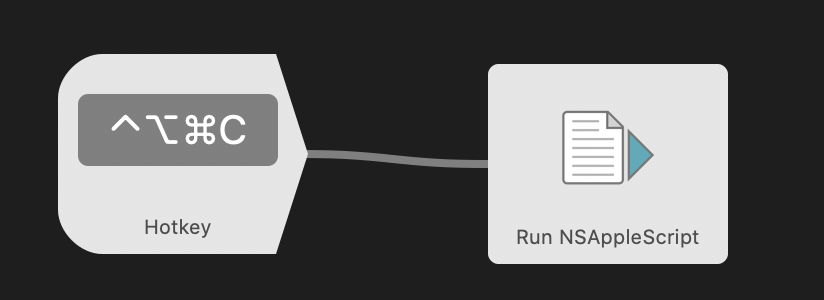
Works best with Alfred 4 using mapped hotkey.
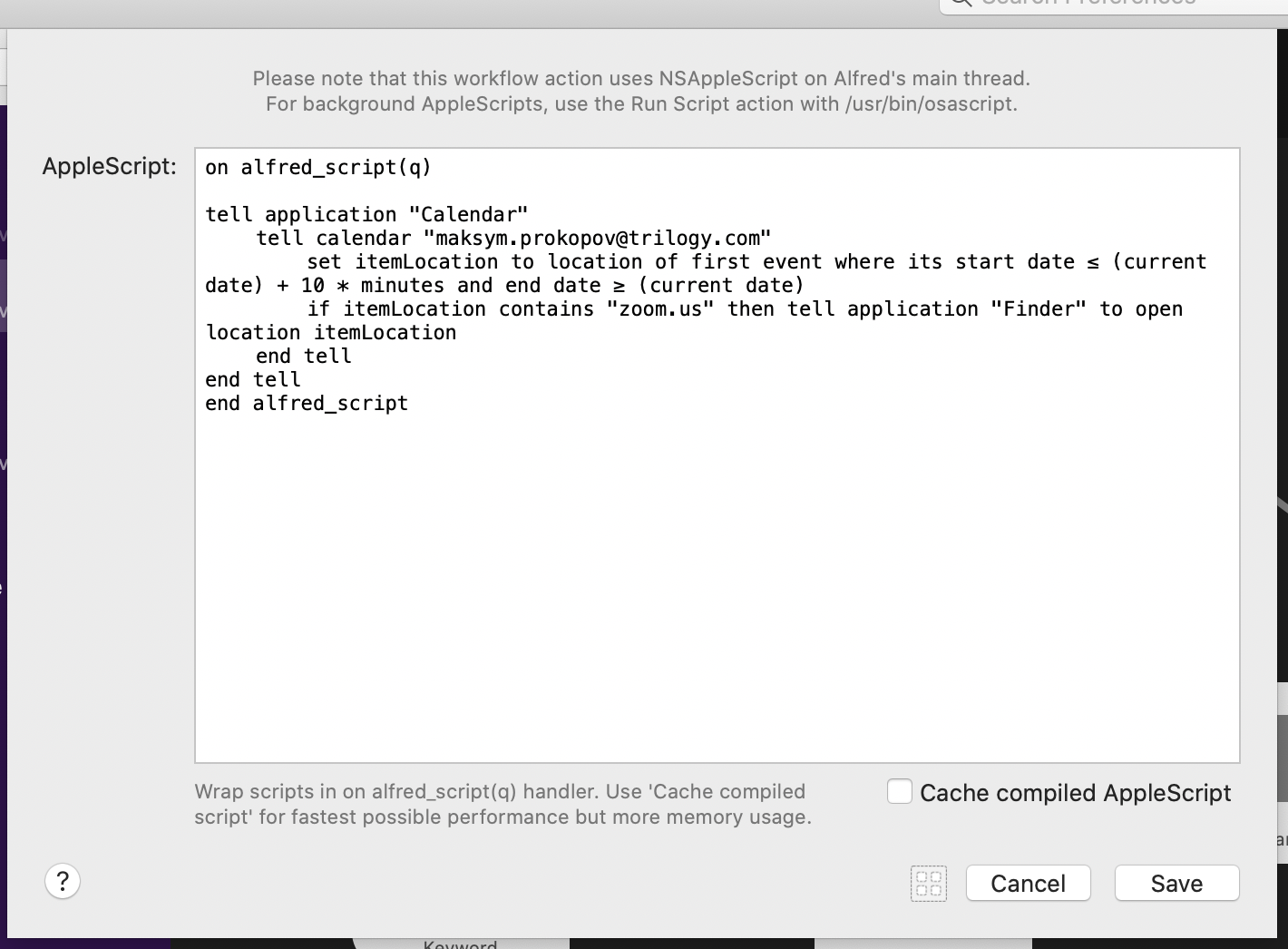
tell application "Calendar"
	tell calendar "[email protected]"
		set itemLocation to location of first event where its start date ≤ (current date) + 10 * minutes and end date ≥ (current date)
		if itemLocation contains "zoom.us" then tell application "Finder" to open location itemLocation
	end tell
end tell